Edit PDF documents
Edit PDF documents directly in your browser without conversion. Enjoy fast, simple editing with no technical setup required.
What is Edit Mode?
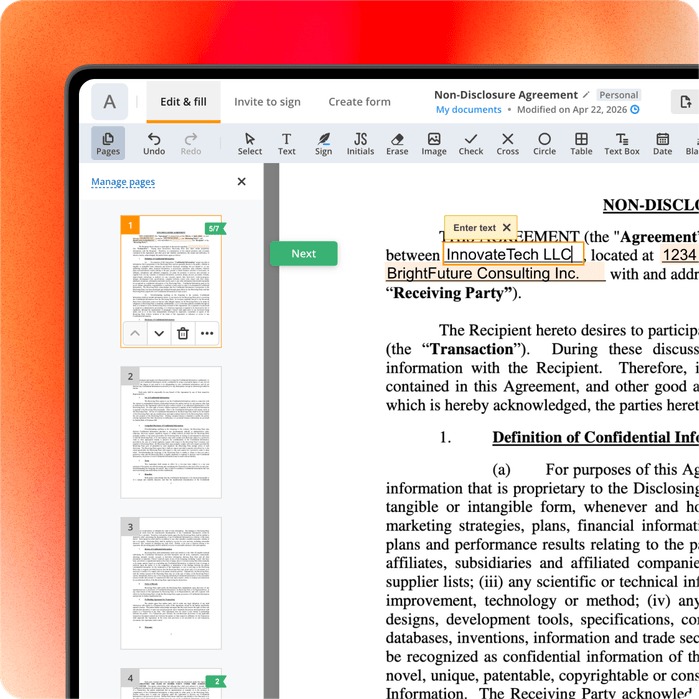
Edit Mode in pdfFiller allows you to directly modify text in your PDF documents without the need for conversion. This feature is essential for anyone looking to edit PDF documents efficiently. With tools available in Edit Mode, you can easily click on text blocks to modify content, add new text, or remove existing text. Unlike annotation tools that simply overlay content, Edit Mode enables true editing of the document's source. This means you can make changes directly to the text, ensuring that your edits are permanent and integrated into the document. You can also format your text, making it a versatile PDF editor for various business needs.
Why Edit PDFs?
The ability to edit PDF documents is crucial for small and medium-sized businesses that often need to correct, update, or add information without the hassle of converting files. Common scenarios include updating invoices, modifying contracts, or correcting typos in important documents. By using pdfFiller, you avoid the complications that come with traditional PDF editing tools, such as lengthy conversion processes. This straightforward approach allows you to focus on your work without unnecessary delays.
How to Access Edit Mode
To access Edit Mode in pdfFiller, locate the Edit button, represented by a pencil icon, in the editor toolbar. Ensure that your document is in an editable state, typically a native PDF. Once you click the Edit button, you will enter Edit Mode, where you can start modifying your document immediately. This quick access feature ensures that you can begin editing PDF documents with minimal effort.
How to Edit Existing Text
To edit existing text in your PDF, simply click on the text block you wish to modify. This action activates the text editing feature, allowing you to make changes directly. You can navigate between text elements easily, ensuring a smooth editing experience. Once you have made your changes, remember to save your document to retain the edits. This process makes it simple to edit PDF documents without any technical setup.
How to Add New Text Blocks
To add new text blocks to your PDF document, click on the area where you want to insert text. Select the option to insert a new text block, and you can set its initial formatting, such as font size and color. Positioning the text block is straightforward, allowing you to enhance your document with additional information or notes. This feature is particularly useful for creating fillable forms or adding comments to existing documents.
How to Remove Text
To delete unwanted text in your PDF, select the text you wish to remove. Confirm the deletion to ensure that you do not accidentally remove important content. This straightforward selection process allows you to clean up your documents effectively, ensuring that only the necessary information remains. Removing text is a crucial part of maintaining document accuracy and relevance.
How to Use the Whiteout Tool
The Whiteout tool in pdfFiller allows you to cover text with a white fill rectangle, making it an effective correction tool. Unlike Blackout, which permanently redacts information, Whiteout is designed for temporary corrections. This feature is particularly useful when you need to make adjustments without altering the underlying document structure. Understanding how to use Whiteout can enhance your editing capabilities significantly.
Text Formatting Options
pdfFiller offers various text formatting options to enhance your documents. You can adjust the font family, size, and style, including bold, italic, and underline. Additionally, you can change the text color and alignment to suit your document's needs. These formatting controls are essential for creating professional-looking documents that meet your business standards.
Using Find and Replace
The Find and Replace feature in pdfFiller allows you to locate specific text strings within your document and substitute them with new content. This tool is invaluable for making bulk edits quickly, especially in lengthy documents. By using Find and Replace, you can ensure consistency and accuracy throughout your PDF files, enhancing your document management process.
Editing Native vs. Scanned PDFs
When editing native PDFs, you have full access to text editing features, allowing for straightforward modifications. However, scanned PDFs present a challenge as they are image-based, requiring OCR (Optical Character Recognition) for text editing. Without OCR, you can only use annotation tools to overlay corrections. Understanding these differences is crucial for effective document management.
Real-World Editing Scenarios
Consider a small business owner who needs to update an invoice. With pdfFiller, they can quickly edit PDF documents to reflect the correct amount without converting the file. Similarly, a freelancer may need to modify a contract for a client; they can do this efficiently using the editing tools available. In another scenario, a project manager might need to add comments to a project proposal, which can be done seamlessly with the text addition feature. These examples illustrate the practical benefits of editing PDFs for professionals across various industries.
Limitations of Edit Mode
While Edit Mode offers extensive capabilities, there are limitations to be aware of. For instance, editing scanned PDFs requires OCR, which may not always be available. Additionally, font matching is best-effort and not guaranteed, which can affect the appearance of your edits. Password-protected documents cannot be edited unless the password is provided. Being aware of these constraints helps set realistic expectations for your editing tasks.
How Does pdfFiller Compare?
pdfFiller stands out against competitors like Adobe Acrobat, which is known for its comprehensive features but often requires complex setups and high costs. Users may find Adobe overwhelming for simple tasks. Foxit offers similar functionalities but lacks the intuitive interface of pdfFiller, making it less user-friendly for quick edits. Nitro provides robust editing tools but is often more expensive and less accessible for small businesses compared to pdfFiller.